





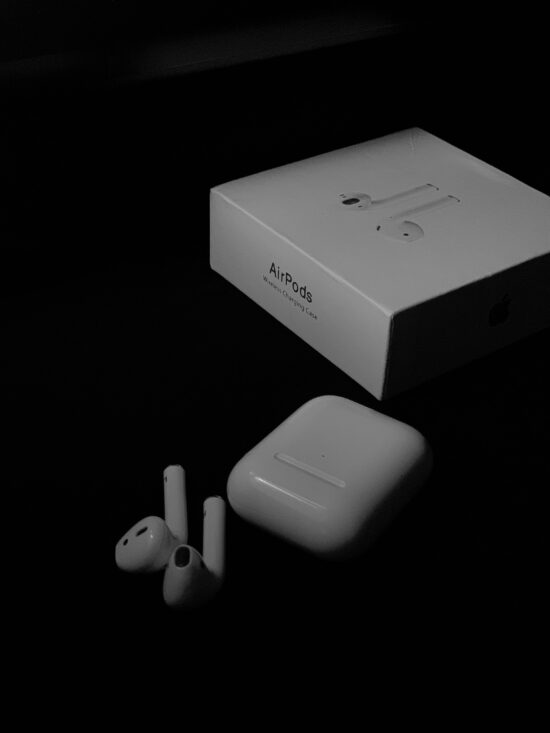
It’s great when you have AirPods because they help improve privacy and convenience; it helps to be untethered while working or relaxing.
Here are a few tips to help you connect your PC (whether it’s Windows or Mac) to your AirPods.
Connect To A Windows Laptop
Tip 1
Go to Settings
Click on “devices.”
Click on “Bluetooth and other devices.”
Flip the Bluetooth switch on.
Click on “Add Bluetooth and other devices.”
Select Bluetooth
Open your AirPods.
Press down the button on the bottom of the AirPods case until it displays a blinking white light.
Release the button and ensure you keep the case cover open.
Go back to your laptop and click on “AirPods.”
Your laptop is now connected to the AirPods.
Tip 2
Go to the bottom right corner of your laptop.
Click on the notification icon.
Click on the “Connect” tap.
Open up the AirPods
Hold the button at the back of the AirPods until there is a flashing white light.
Check if it pops up on your laptop.
Click “Connect”
You will see a pop-up message that shows that it is connected.
Connect To A MacBook
Tip 1
Click the Apple Logo on the top left corner of your MacBook.
Scroll down to the system preferences and click on them.
Click on the Bluetooth icon.
Open your AirPods.
Long Press on the button at the back of the AirPods until it displays a flashing white light.
Turn on the Bluetooth on the Mac.
Check if the AirPods pop up on the discoverable panel.
Click on it.
Now it is connected.
Tip 2
Click the Search button on the top right corner of your MacBook.
Type in “Bluetooth” and search.
Click on “Bluetooth.”
Open your AirPods.
Long Press on the button at the back of the AirPods until it displays a flashing white light.
Turn on the Bluetooth on the Mac.
Check if the AirPods pop up on the discoverable panel.
Click on it.
Now it is connected.
Do you have another method for connecting your laptop to your AirPods?
Which of these options is your favorite?
Let us know in the comments section.
Join the conversation; follow us on Facebook, Instagram, and Twitter at GoSpeedHub.
Photo by Sabeel Mhmd