





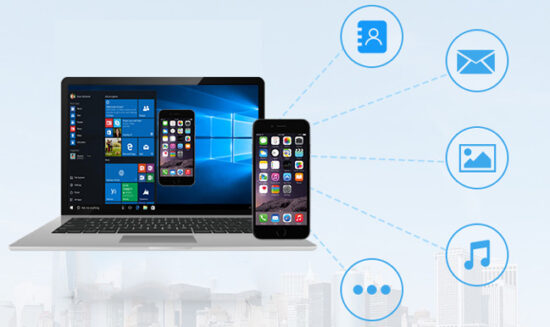
Transferring files from an iPhone to a Windows computer might seem difficult since they are both built on different operating systems.
However, sending and receiving files between an iPhone and a laptop is quite easy; you just need to know the steps to take, and you can transfer files in seconds.
Below are ways you can send files from your iPhone to a Windows computer:
Tip 1
With this tip, you can transfer anything from your iPhone to your Windows PC and vice versa.
1. Open your laptop and phone browser and search www.sharedrop.io.
2. Open the website on both of your devices.
3. Scan the QR code on your laptop using your phone to get connected.
4. Once it is connected, click on the Avatar displayed on your laptop and choose the files you wish to send.
5. It offers a peer-peer file transfer which means it is happening over the internet but does not consume internet data.
Tip 2
1. Download and install VLC on your iPhone.
2. Open the App on your phone, Go to Network.
3. Click on “Sharing via WiFi.”
4. Once you hit the share button, there will be a website link that you will enter into your laptop’s browser.
5. Click Search on your laptop browser to connect both devices.
6. When connected, all you need to do is drag and drop files to share them via both devices.
Tip 3
1. Ensure that both devices are on the same WiFi network.
2. Search for snapdrop.net on both of your devices.
3. Both devices will pop on each other’s screen.
4. Open them and start sending the files you intend to send.
Tip 4
1. Create a similar google drive account for both your laptop and your iPhone.
2. Select the files you want to send from either of the devices.
3. Create a New Folder in Google Drive and name it.
4. Paste the already selected files.
5. Click “Save.”
6. You can access those files from either of the two devices.
Tip 5
(You need to have an iTunes subscription for this method)
1. Download and install iTunes on both your iPhone and laptop.
2. Open it on your laptop and your phone.
3. Save files you want to share on your phone in a desired App.
4. On your PC, click the device on the top left.
5. Click “File Sharing.”
6. To send files from your phone, Choose the file you wish to transfer from the list on the right of your phone, click “Save to,” choose the destination for the file’s storage and then select “Save to.”
7. To send files from your laptop, click “Add.” Select the files you want to transfer from your laptop and send them.
Please visit us @GoSpeedHub on Facebook, Instagram, and Twitter for more information.
Photo By Airmore